
Polish a Halloween Clip in a Video Editor
A generated clip is only one part of a finished post. A mobile editor such as CapCut can add a short caption, adjust audio and prepare an export for a social platform. The same basic steps apply in most video editors.
Keep the edit simple. The source film already has a beginning and ending, so preserve the pause and transition that make its story understandable.
Updated
CAPCUT
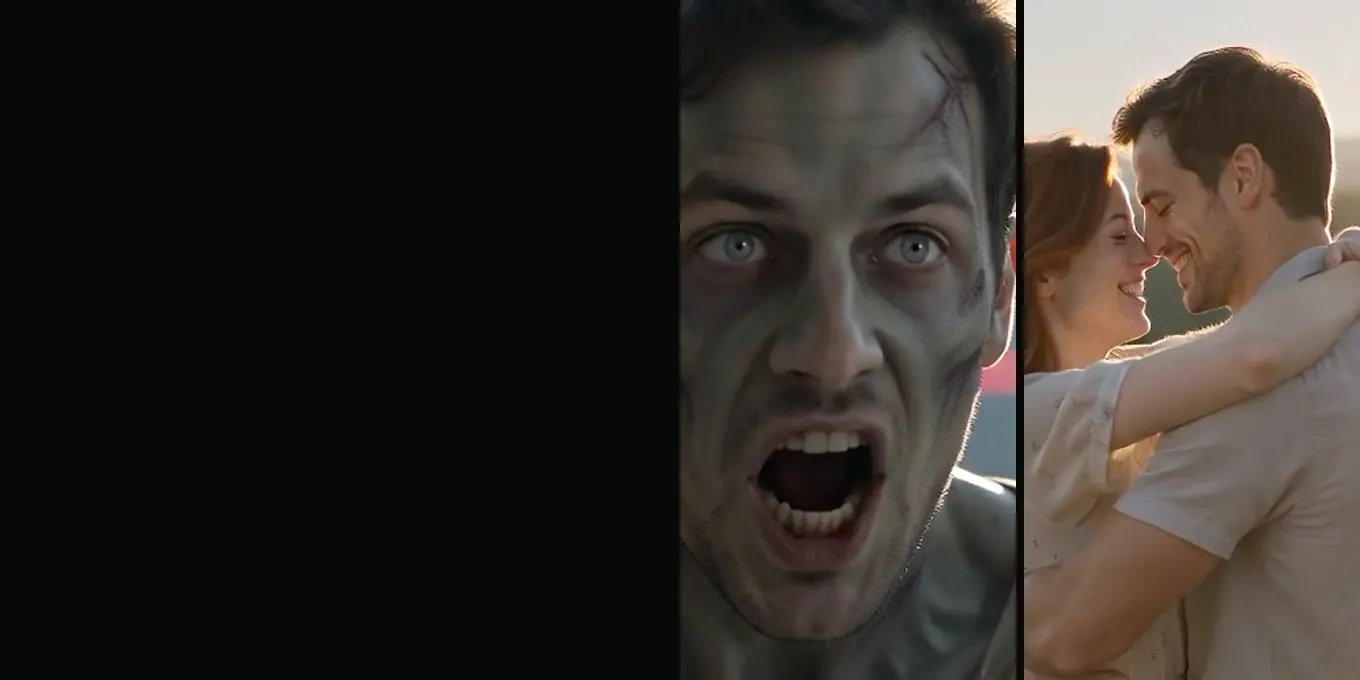
The zombie trend in CapCut
- Zombie templates
- Add a sound
- Add a line
A simple finishing sequence
- Import the MP4 and watch it once without editing.
- Trim only accidental blank space or a rough start.
- Add one readable caption in an area that does not cover faces.
- Adjust music or effects so they do not overpower the scene.
- Export in the frame shape and resolution you intend to post.
Keep captions easy to read
Use a short line, high contrast and enough screen time to read it. Avoid covering eyes or the movement that reveals the story. Check the mobile preview before publishing.
Check audio and export
Listen with headphones and at phone-speaker volume. Look for clipping, sudden jumps and an ending that cuts off too quickly. Export a new copy rather than overwriting the original render.
FAQ
Can I edit the generated video in CapCut?
Yes. Download the MP4 and import it into your editor. Feature names and export steps may differ by device and app version.
Should I add a trending sound?
Only if you have the rights to use it on the platform and it suits the scene. Check the current platform license and audience settings.
Read next
Captions and Sound for a Halloween Reveal
Use text and audio to frame the reveal without obscuring the action.
Use a Match Cut to Connect Two Halloween Scenes
A match cut links two shots through a shared movement, shape or camera position.
How to Plan a Two-Photo Halloween Video
Prepare two portraits, assign character roles, choose the frame and review the export.
AI Halloween is an independent site with no ties to TikTok or to any film or TV studio. Clips by other creators belong to them.